Getting Started with UNIX and CodeCrunch
0. Overview
The only way to attain proficiency in programming is to practise, and
practise must you.
This includes doing the programming exercises, trying out and experimenting
with the programs presented in the lectures as well as the discussion sessions.
It is not good enough just to read others' C programs. You must type it in,
compile it, and run it yourself! Your programming aptitude can only be improved
with programming experience. As you will be using a UNIX platform for C
programming, we have provided here a step-by-step walkthrough which will guide
you through the following:
- Using the PCs in the programming lab
- Connecting to SoC's sunfire UNIX server
- Basic UNIX commands
- Developing C programs in UNIX
- Transferring files
- Submitting Your Programs Using CodeCrunch
This guide assumes that you are using Windows. For non-Windows users, please refer
to Appendix B for alternative commands / software for Steps 2 and 5.
1. Using the PCs in the programming lab
You should be greeted with a Windows screen if a PC is up (if the PC is off,
switch it on first). As instructed on the screen, press Ctrl-Alt-Delete.
A login screen will appear. You are to type in "nusstu\<NUSNET user-id>"
(e.g., nusstu\e1234567 or nusstu\a1234567) in the first box, and then your NUSNET password in the second box.
Note: All NUS
students are issued with an NUSNET account by the Computer Centre. The domain
name of this account is "@u.nus.edu". All SoC students, as well as students
from other faculties taking SoC modules, are also issued with an
SoC UNIX account (see below). The domain name of the SoC account is
"@comp.nus.edu.sg". This SoC UNIX account will be purged at the end of the
semester for non-SoC students. Do not mix up your NUSNET account and SoC UNIX
account; each has its own user-id, password and mailbox.
2. Connecting to SoC's sunfire UNIX server
In class, you will need to log into sunfire (our UNIX server).
If you are accessing sunfire for the first time, you will need to first create (or
re-enable) your SoC UNIX account. Using a web browser, go to
https://mysoc.nus.edu.sg/~newacct and follow the instructions
to create your UNIX Account (use a maximum of 8 characters in your password or
you may encounter problems). After obtaining a UNIX account, you can then log
into sunfire using your UNIX user-id and password. The same website above also
allows you to reset your password should you forget it.
Please create your UNIX account as soon as possible,
before attending the Introductory Workshop or your first lecture.
2.1 Logging into sunfire using SSH Secure Shell
In class, you will use the SSH Secure Shell software to log into sunfire.
The PCs in the programming labs comes with SSH Secure Shell installed.
To launch SSH Secure Shell, look for its icon
 on the desktop and double click on it.
(Alternatively, left mouse click on the Start button at
the bottom-left corner, select All Programs, look for SSH Secure Shell
folder, and left click on Secure Shell Client.)
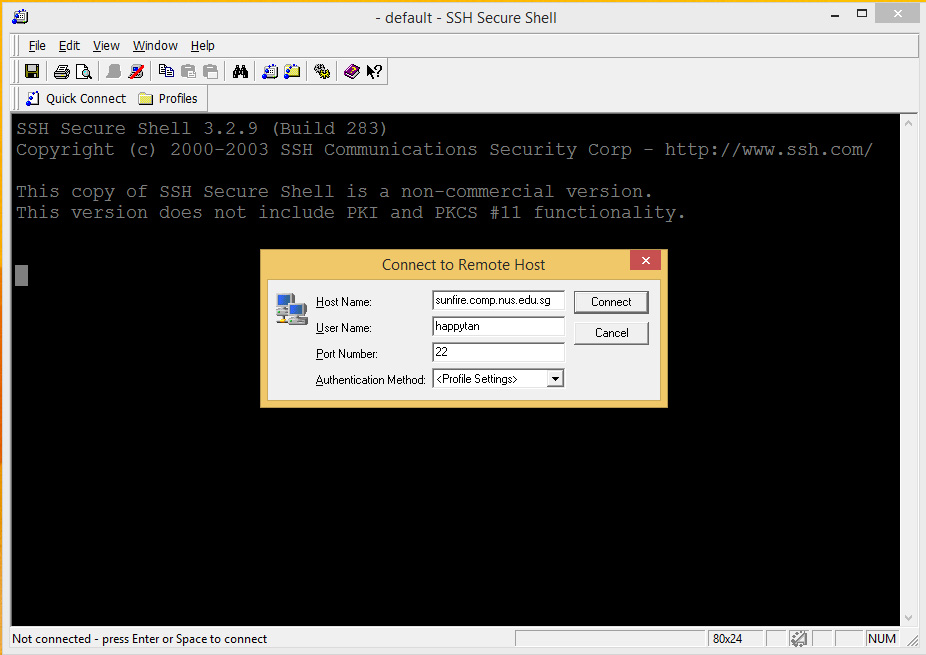
A screen similar to the
one shown below will appear. Click on Quick Connect button and a small
window Connect to Remote Host will pop up.
on the desktop and double click on it.
(Alternatively, left mouse click on the Start button at
the bottom-left corner, select All Programs, look for SSH Secure Shell
folder, and left click on Secure Shell Client.)
A screen similar to the
one shown below will appear. Click on Quick Connect button and a small
window Connect to Remote Host will pop up.
Under Host Name, enter sunfire.comp.nus.edu.sg
(if you are using a computer in an SoC lab, then just enter sunfire will do.)
Under User Name, enter your SoC UNIX user-id. Note that UNIX is
case-sensitive
(therefore as an example, you must type "happytan" and not
"HappyTan").
Ensure that the Port Number is 22 and then click on the Connect
button.
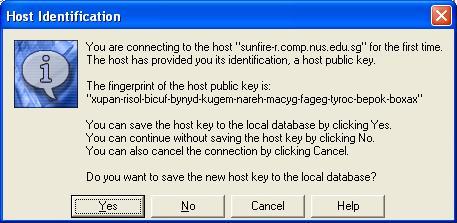
If you encounter the following window, just click "Yes".
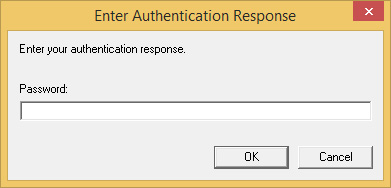
When this is done, the following window will appear to prompt you for your
password. Note that the user-id and password are
case-sensitive
(i.e. 'a' is different from 'A'). The password will appear on the screen
as asterisks (******) so you need to type slowly and carefully.
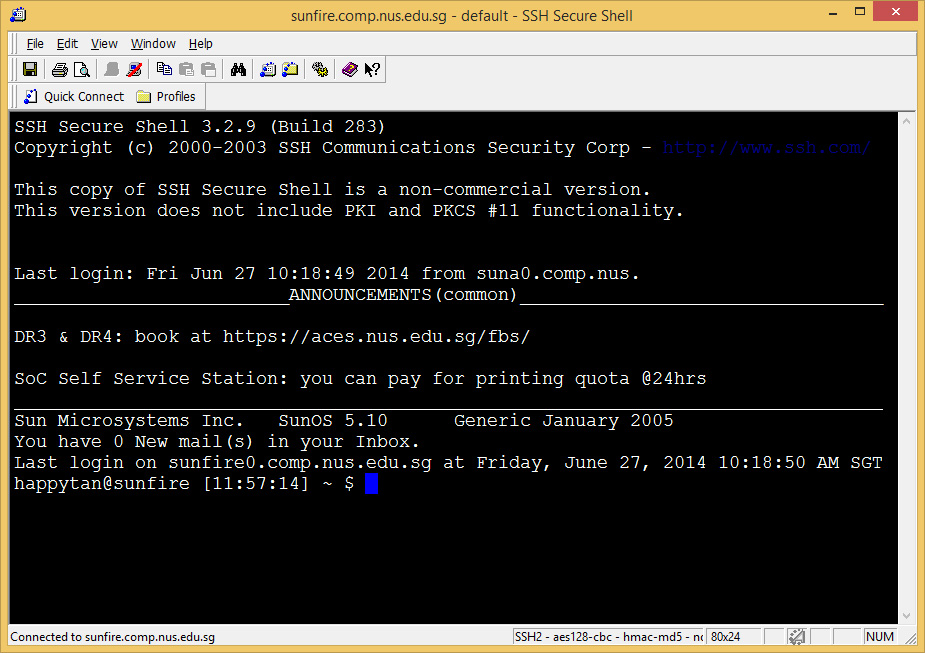
Once you have
logged into sunfire, you are automatically placed in your home directory.
You will see the following display. Note that your UNIX prompt is shown as
"your_userid@sunfire [time] ~ $"
indicating a successful login. You are now at the home directory of your
sunfire account.
2.2 UNIX passwords
There are guidelines to choosing good passwords which are safer and
less susceptible to break-ins. When you change your password, the system
will check that your new password satisfies its stringent requirements,
failing which it will reject the change. Generally, the system tends to
accept passwords that consist of at least a mix of uppercase and lowercase
characters, plus some digits. (Refer to this
page Choosing a Good Password to find out more after this lab.)
You can change your password any time you like -- in fact, you are advised
to change it regularly.
Always remember your password! If you forget, you would need
to go to I Forgot My SoC Password page to change your password online
(this requires your NUSNET user-id and password).
2.3 Changing settings in SSH
You may change the settings in your SSH session, such as background colour,
text colour, cursor colour, and font size.
Your vim has be configured to display well in light background.
Hence, you are advised to change the default white-on-black display in SSH
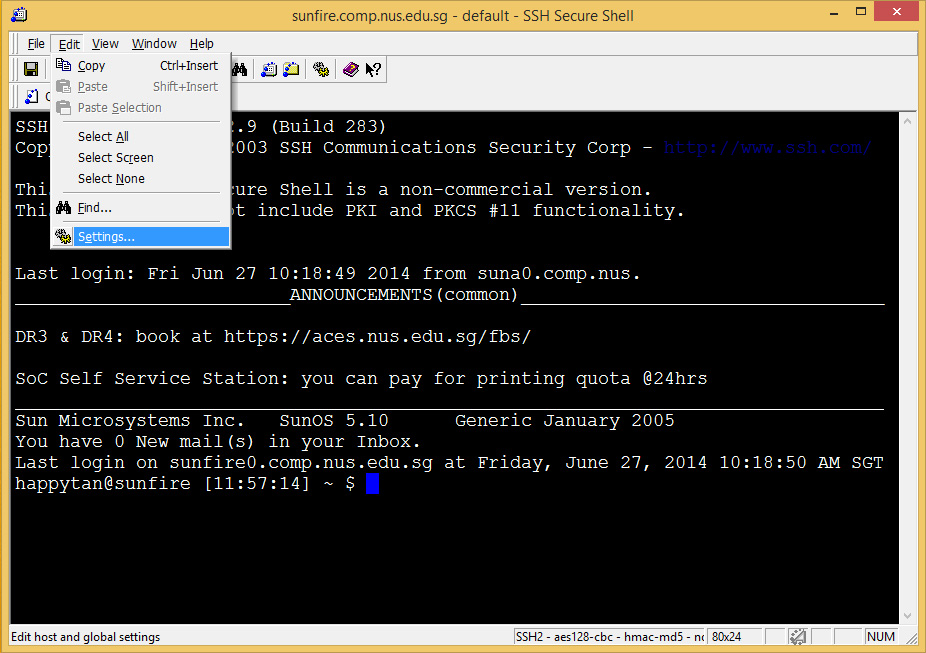
to black-on-white display. To do this, click on "Edit" -> "Settings" as shown
below:
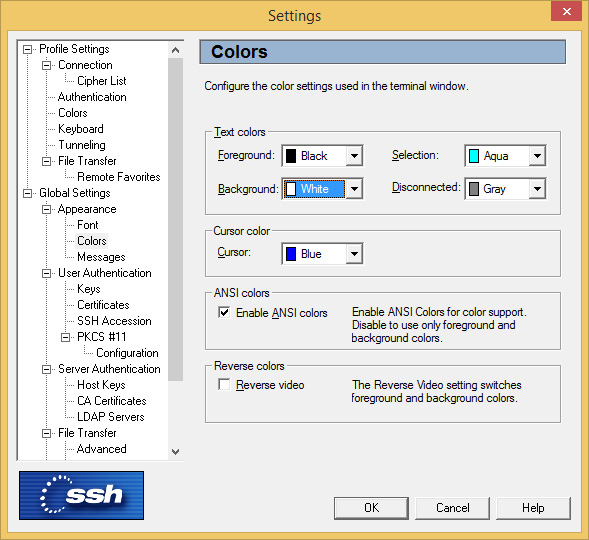
This will bring up a pop-up window where you may change the settings accordingly.
For example, to change the appearance colours, select "Colors" and change
the Foreground colour to black and Background colour to white as shown, and
click "OK" after that.
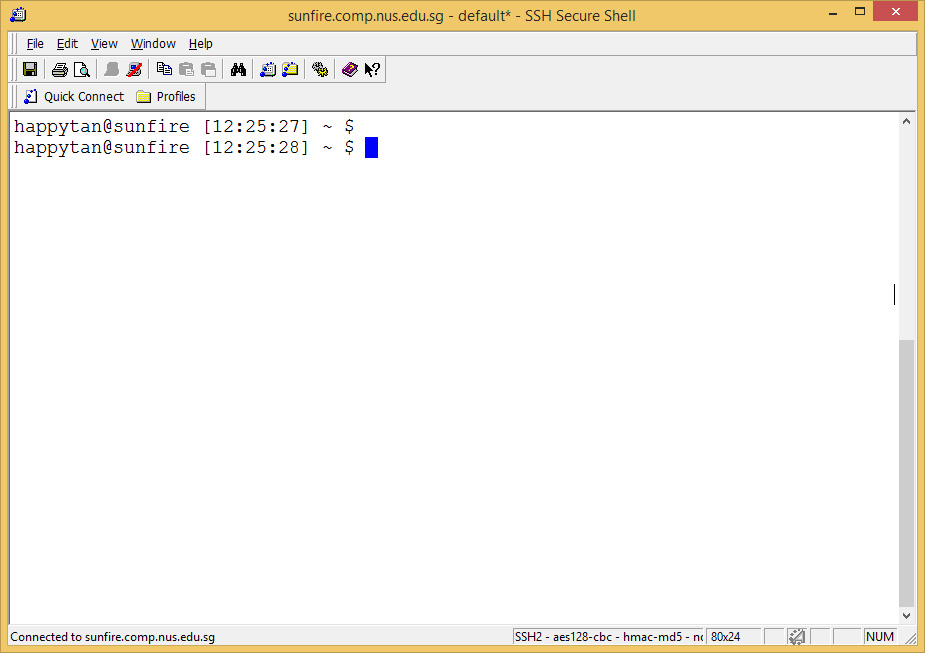
This is how your screen looks like after the above change.
2.4 Setting up your sunfire account
For this course, you will also need to configure your sunfire account. This
step must be correctly done! Note that this step creates a subdirectory
called 'c' in your home directory, and adds some files into your home directory
and the subdirectory created. It will overwrite files that you have earlier
created if they have the same name.
You only need to do this step ONCE. If you have done this before, you may
skip this.
After connecting to sunfire using your UNIX user-id and password, type the
following commands (you should do this only ONCE):
~cs1010e/setup
Check that you enter the above command ACCURATELY (the tilde character
"~" is
usually found on the top left of your keyboard on the left of the
"1" key).
This command initializes your account and prepares it for this introductory
workshop. It creates the "c" subdirectory (a directory
is a folder), and copies some files into your home directory and
the "c" subdirectory
(so that you don't have to create the files from scratch). Refer to Appendix A for a list of these files
and their descriptions.
After the setup program runs successfully, you must type:
source .bashrc
This sets up useful commands for your program submission later. Remember to
type the SPACE in between "source" and ".bash_profile". Note that if the above command ran successfully, you should see no output before
the next prompt appears. With many UNIX commands, "no news is good news". This
is very different from Windows or Mac where you are used to seeing a dialog box
pop out. Try to get used to UNIX quickly.
2.5 Before you proceed further...
- Do not click on the Close button (the button with a cross) at the top
corner of the window. The correct way to log out of your UNIX account is to
enter the command "exit" or
"logout". Pressing ctrl-d will also have the same effect.
In particular, you MUST remember to log out of
sunfire after every lab session, otherwise anyone who comes by may delete
all your valuable files away!
- The UNIX system is not GUI-based so the mouse is seldom used (if at all).
- You should always enter UNIX commands from the UNIX prompt. If you don't
see the UNIX prompt, check that you have not scrolled off the screen with
the mouse. Bring the prompt back into view by scrolling back.
- If you do see the UNIX prompt but whatever you type does not appear, you
might have accidentally locked your screen (locking can be done by pressing
ctrl-s or by pressing the "Scroll Lock" key). Unlock
your screen by pressing ctrl-q (if you have pressed ctrl-s
earlier), or by pressing "Scroll Lock" again (if you have
pressed "Scroll Lock" earlier).
- If you get stuck after typing a command or in a middle of an application,
sometimes typing 'q' (quit) may get you out.
- If 'q' does not work, press ctrl-c which is the interrupt key.
Use this as the last resort. If it still doesn't work, seek help.
- Do NOT press ctrl-z, which is the interrupt key in DOS. Pressing
ctrl-z in UNIX sends your job to the background, and if you have
accidentally pressed ctrl-z, type 'fg' (foreground) to
to bring the job back to the foreground.
(If you have pressed ctrl-z and forgotten about it, when you try
to log out, you will get a "There are stopped jobs" message. You have two
options: (1) type 'fg' to get the stopped job back to the foreground
to resume, or (2) type 'exit' again to confirm logout.)
- You may use the up and down arrows to select a previously entered
command. You could edit the selected command, or press enter to execute it.
This saves you some typing time.
- In some cases, you may use the tab key for auto-completion when
typing file names. For example, if you have a file with
a very long file name "thisisaverylongfilename", and you
want to edit it using the "vim" editor, instead of typing
"vim thisisaverylongfilename",
you may just type "vim this" and press the tab key to let
the system fill up the rest of the long file name. This assumes that
the file name is uniquely identified by the first four characters
"this".
If you have doubts, ask your lab TA to show you how this can be done.
3. Basic UNIX commands
Whether you are using UNIX on your local machine or logging into sunfire, now
is the time to start your UNIX adventure. The power of UNIX stems from the many
commands it offers. The following are a few commonly used commands. This list is
by no means exhaustive and you are urged to explore on your own. Note that UNIX
commands are case-sensitive.
In the examples below, bold words are commands which you are expected to
enter. All commands are to be entered after the UNIX (local or sunfire) prompt
of the form
user@machine:~[xxx]$
~ indicates that
you are currently in your home directory. The following examples assumes that
user happytan is logged into sunfire; however you can do it on your local UNIX
platform too.
It might be good to understand the directory structure in UNIX, a multi-user
system. The directory tree is shown below:
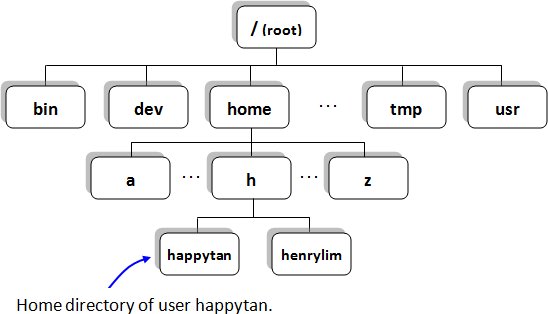
Each user has his/her own home directory, which is where he/she will be
automatically placed when he/she logs into the system. The above figure
shows where the home directory of user happytan resides in the
directory tree. The user happytan may create files or directories
in his home directory, but not elsewhere unless permission is given.
a. Directory commands
| pwd |
to Print current Working
Directory to show you which directory you are currently in |
| |
happytan@sunfire0:~[xxx]$ pwd
/home/h/happytan |
| ls |
to LiSt files in your current directory
|
| |
happytan@sunfire0:~[xxx]$ ls
c |
| |
You may also use "ls -F" for more information (-F is
one of the many options/flags available for the ls command. To see
a complete list of the options, refer to the man pages, ie. "man ls".) |
| |
happytan@sunfire0:~[xxx]$ ls -F
c/ |
| |
The slash (/) beside the filename tells you that the file is a directory
(folder). A normal file does not have a slash (/) beside its name when "ls
-F" is used. |
| |
You may also use the "ls -l" command (hyphen el, not hyphen one)
to display almost
all the file information, include the size of the file and the date of
modification. Try it now! |
| cd |
to Change Directory from current directory
to another |
| |
happytan@sunfire0:~[xxx]$ cd c
happytan@sunfire0:~/c[xxx]$ ls -F
example1.c example2.c example3.c |
| |
Note that the prompt changes to ~/c to indicate that you are
now in the c directory below your HOME directory.
Entering "cd"
alone brings you back to your HOME directory, ie. the directory in which you
started with when you first logged into the system.
|
| |
happytan@sunfire0:~/c[xxx]$ cd
happytan@sunfire0:~[xxx]$ |
| mkdir |
to MaKe a subDIRectory in current
directory |
| |
happytan@sunfire0:~[xxx]$ mkdir another
happytan@sunfire0:~[xxx]$ ls -F
another/ c/ |
| rmdir |
to ReMove a subDIRectory in current
directory -- note that a directory must be empty before it can be removed. |
| |
happytan@sunfire0:~[xxx]$ rmdir another
happytan@sunfire0:~[xxx]$ ls -F
c/ |
b. File commands
| cp |
to CoPy files |
| |
happytan@sunfire0:~[xxx]$ cd c
happytan@sunfire0:~/c[xxx]$ cp example1.c duplicate.c
happytan@sunfire0:~/c[xxx]$ ls
duplicate.c example1.c example2.c example3.c |
| mv |
to MoVe files from one directory to
another; can also be used to rename files. |
| |
happytan@sunfire0:~/c[xxx]$ mv duplicate.c new.c
happytan@sunfire0:~/c[xxx]$ ls
example1.c example2.c example3.c new.c |
| rm |
to ReMove files. Be careful with
this command -- files deleted cannot be restored (unless they have been
backed up during the normal backup cycle). |
| |
happytan@sunfire0:~/c[xxx]$ rm new.c
rm: remove 'new.c'? y
happytan@sunfire0:~/c[xxx]$ ls
example1.c example2.c example3.c |
c. Command to display text files
| cat |
to string together or display (CATenate) the
contents of files onto the screen |
| |
happytan@sunfire0:~/c[xxx]$ cat example1.c |
| less |
variant of "cat" (includes features to read
each page leisurely) |
| |
happytan@sunfire0:~/c[xxx]$ less example1.c |
| |
In "less", use <space> to move down one page,
'b' to move Back up one page, and 'q' to Quit from "less". |
| An online help facility is available in UNIX via the "man"
command ("man" stands for MANual). To look for more
information about any UNIX command, for example, "ls", type "man
ls". Type "man man" and refer to Man Pages
to find out more about the facility. To exit "man", press "q". |
Some tips
-
Command history:
UNIX maintains a history of your previously executed UNIX commands, and
you may use the up and down arrows to go through it.
Press the up arrow until you find a previously executed
UNIX command. You may then press Enter to execute it, or edit
the command before executing it. This is handy when you need to
repeatedly executed a long UNIX command.
-
Filename completion:
If you have a very long file name, you may use UNIX's filename completion
feature to reduce typing. For instance, if you have a file called
"aVeryLongFilename" and you want to cat it, you may type:
cat aV
and press the tab key, and UNIX will complete the filename
for you if there is only one filename with the prefix "aV". Otherwise, it
will fill up the filename up to point where you need to type in more
characters for disambiguation.
4. Developing C Programs in UNIX
The process of creating a working C program involves the following steps:
        +---------+
+---+-->|  EDIT   |
|   ^   +---------+
|   |        |
|   |        |
|   |        v
|   |   +---------+
|   +---| COMPILE |
|       +---------+
|            |
|            |
|            v
|       +---------+
+-------|   RUN   |
+---------+ |
- Using an editor, type in the source code (C source code must have
the extension .c, eg: example1.c)
|
- Compile your program to obtain the executable file. If there are
compilation errors, identify them and re-edit the source code before you
proceed.
|
- Run your executable file by typing the name of the executable file.
If there are run-time errors, you must identify them and re-edit the
source code, and compile again. |
4.1 A sample C program
Three sample C programs have been copied into your "c" subdirectory.
Use "cat" or "less" to view the program "example1.c".
Assuming that you are at your home directory (if you are not, enter
cd to get to your home directory), issue the following commands:
happytan@sunfire0:~[xxx]$ cd c
happytan@sunfire0:~/c[xxx]$ less example1.c
/*****************************************************
 *  example1.c
 *  This program computes the distance between two points.
 ************************************************************/

#include <stdio.h>
#include <math.h>

int main(void) {
    /*  Declare and initialize variables.       */
    /*  x1,y1 are coordinates of 1st point, and */
    /*  x2,y2 are coordinates of 2nd point.     */
    double x1=1, y1=5, x2=4, y2=7,
           side1, side2, distance;

    /*  Compute sides of a right triangle.  */
    side1 = x2 - x1;
    side2 = y2 - y1;
    distance = sqrt(side1*side1 + side2*side2);

    /*  Print distance.  */
    printf("The distance between the two points is %5.2f\n", distance);

    return 0;
} |
Compile and run the program as follows (use the "gcc" compiler):
happytan@sunfire0:~/c[xxx]$ gcc -Wall -lm example1.c
(this will compile "example1.c" and produce the executable file
"a.out". Note that the "-Wall" flag is to enable
error-checking feature of the compiler and the "-lm" flag (hyphen el em,
not hyphen one em) is used whenever a C
program contains the line #include <math.h>.
Note that if gcc compiles your program successfully, you will see no output.
With gcc, "no news is good news". You are now ready to execute your
program by typing the name of the executable:
happytan@sunfire0:~/c[xxx]$ ./a.out
This will execute the file "a.out". Note that we prefix it
with "./" to indicate that "a.out" is in the current
directory. (Some of you may type "a.out" instead of "./a.out"
to execute the program, if your account is set up in certain manner.)
4.2 Create your first C program "first.c"
You need an editor to write your programs. In this course, you shall be using vim -- a powerful editor with
many commands, but even with the knowledge of a few simple commands it is quite
easy to use and very powerful.
Get into your c subdirectory if you are not there. Enter "vim
first.c", then press the "i" key. You will see that the words "--
INSERT --" appear on the bottom left corner of your screen. You are now in
INSERT mode. While you are in INSERT mode, you may use the arrow
keys (Up, Down, Left, Right) to move around your program, as well as the
Backspace key and Delete key to delete text. The PageUp and PageDown keys do not
work, so do not use them. Do not use the scroll bar as it does not always work
as expected.
Notice that line numbers (1, 2, 3, etc.) are displayed on the left. This
helps you to easily identify a number by its line. Line numbers are NOT part of
C code. This is extremely useful when identifying the location of compilation
errors.
Type in the following program:
#include <stdio.h>

int main(void) {
    int a=27, b=6, c;

    c = a%b;
    printf("The value of c is %d.\n", c);

    return 0;
} |
Note that for simplicity, the above program has no documentation. A good
program should include documentation, at least the identity of the author, the
purpose of the program and other relevant information. Keep this in mind when
you write your own programs.
When you are done with your editing, you may do one of the following to exit from vim
(<ESC> means the Esc key, and <ENTER> means the Enter key):
- Save and exit
- <ESC>ZZ (Note that the Zs are in uppercase)
- <ESC>:wq<ENTER>
- <ESC>:x<ENTER>
(This command is NOT advisable,
because if you accidentally
type :X instead of :x, you are encrypting the
file, and may not be able to access your program again if you
don't do it correctly. This happened in practical exams!)
- Exit without saving (You will lose all changes done since
the last save.)
If you want to save your file without exiting from the vim editor, press "<ESC>:w<ENTER>".
It is a good habit to save your file periodically so that if the network or
the system goes down for any reason, you will not lose your hard work.
Note:
Recall in section 2.5 (Before you proceed further), ctrl-z sends the current job to the background.
Hence, pressing ctrl-z while in a vim session does
NOT take you out
of vim (although it appears to be so), but instead puts your vim session in the
background. If that happens, remember to type 'fg' to bring vim back
to the foreground, and exit from vim the proper way.
When you start up vim, it begins in COMMAND mode. One way to
go into INSERT mode is to press the "i" key. While in
INSERT mode, you can type in your C code. To switch back to
COMMAND mode, press the "<ESC>" key.
|
When you begin writing bigger programs, you will find the need to
move around or delete portions of code. To do this in vim,
ensure that you are in COMMAND mode by pressing
<ESC>. Using your arrow keys, go to the top (or bottom) of the
section of code you want to move, press uppercase "V "to start
highlighting. Using your up/down arrow keys, highlight the entire
section of code.
Depending on what you want to do to the highlighted sections, you may
press "d" for delete, "x" for cut or "y" for
copy (or yank). Once a section has been cut or yanked, you may move to
the appropriate point in your code and press uppercase "P" to
paste.
You may also choose to use your mouse to highlight blocks of text
and use the native Window's cut-and-paste functionality, but bear in
mind that the end effect may be less desirable. In UNIX, we never use
the mouse.
|
To undo in vim, ensure that you are in COMMAND mode and press
lowercase "u".
You may refer to the
page where it contains the following
references and other tips on vim:
Vim Keys
and Vim Quick Reference Card
(html |
pdf).
The setup program you did in section 2.4 created a file called
.vimrc in your home directory. (File names beginning with "." are
hidden files and normally won't show up in the "ls" command unless
you use "ls -a".) This is the configuration file for Vim for
customizing how you want your Vim to look and work. You may modify this file
once you have learned about the various settings.
Advice: Vim is a powerful editor which takes a steep learning curve to learn,
so you should start using it now and use it often.
4.3 Compile and run your program
Having "edited" your program, save your
work and exit Vim. Compile your program by entering the following command:
happytan@sunfire0:~/c[xxx]$ gcc -Wall first.c
There will be error messages if your program has errors. Go to Step 4.2 to
make the necessary corrections and re-compile. If there are no compilation
errors, proceed with program execution as follows:
happytan@sunfire0:~/c[xxx]$ ./a.out
Note that this "a.out" file is the executable version of "first.c",
and it has replaced the earlier "a.out" file which is the executable
file of "example1.c", since there must not be two files with the same name
in a directory. To avoid this, you may specify the name of the executable file,
instead of leaving it to the system to use the default name "a.out".
The trick lies in the "-o" option of the "gcc" command:
happytan@sunfire0:~/c[xxx]$ gcc -Wall first.c -o first
In the above example, the executable file for "first.c" will be
called "first". Note that the name of the executable file MUST
IMMEDIATELY follow the -o. Be careful of this or you may lose your
source file!
|
Do NOT ever type the following:
happytan@sunfire0:~/c[xxx]$ gcc -Wall first.c -o first.c
What is wrong with the above statement? It states that you want to
output the executable file to first.c. This is wrong, because
the executable file should NOT be the same as your source program
file. If you type the command wrongly, you will LOSE YOUR SOURCE FILE,
and you would have to start typing your source file all over again,
wasting your time and your effort. So be careful in what you type. |
In UNIX, there is no need for the name of an executable file to
have an extension. If you wish to find out more about the
"gcc" command, read the man pages.
4.4 Another program
Use the instructions in Steps 4.2 and 4.3 to create, compile and run the
following program "second.c". What is the output of the program? How
could you add a blank line before and after the line of output, to make it into
a 3-line output?
#include <stdio.h>

int main(void) {
    double a;
    double b=6, c=18.6;

    a = b/c;
    printf("b is %3.1f, c is %3.1f. ", b, c);
    printf("a is %.6f.\n", a);

    return 0;
}
|
Experiment a little by changing the "3.1" and ".6" to some other values and
try to figure out what they do. Try also to combine the two printf
statements into one. Programming is fun in that you can try out all sorts of
things and see the end results yourself! A lot can be learned through
self-exploration alone and you needn't worry about setting sunfire on fire!
4.5 A program with errors
The program "third.c" below contains syntax errors which will be
reported during compilation. Though you may be new to C, the error messages do
give some information, and by referring to the few correct sample programs
above, you should be able to spot some, if not all, of the errors.
*/ This program contains MANY syntax errors /*
include (stdio.h);

int main(void) {
    double num

    num := 305.68;
    printf("num is ")
    printf('%6.1f\n', Num);

    return 0;
}
|
Edit the program edit to correct the errors. Compile it. If there are still
errors, what must you do? Yes, edit the program again, and re-compile. Assuming
that all errors have been corrected, what is the output of this program?
5. Transferring Files
There are two ways to transfer files between your local machine and your sunfire UNIX account.
Using secure file transer in SSH Secure Shell
If you have downloaded and installed SSH Secure Shell on your local
machine, you may double click on the SSH Secure File Transfer icon
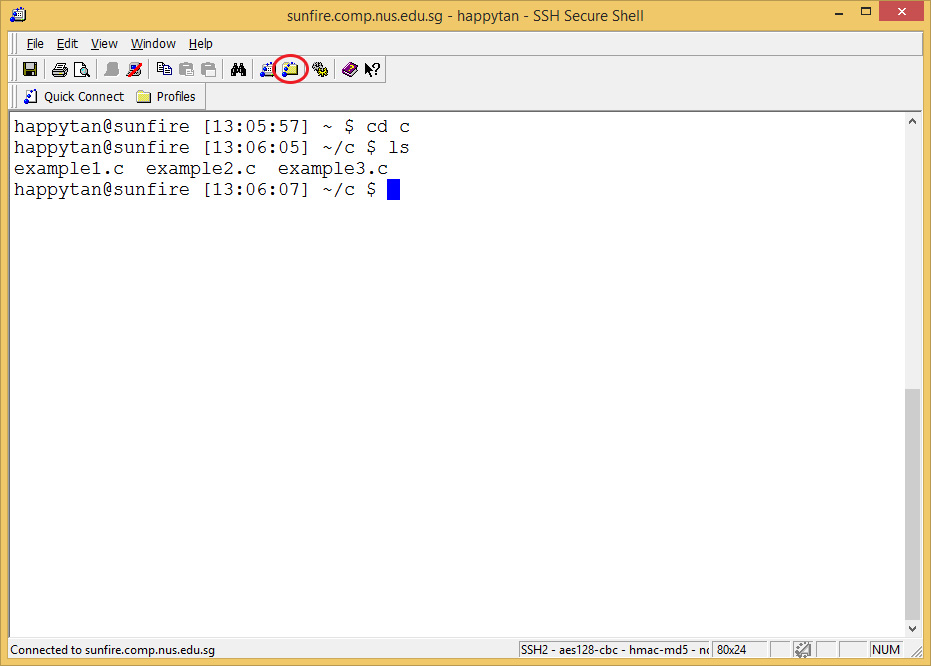
 on the desktop. Or if you have already logged into your UNIX account, you may click on
the similar yellow icon as circled below to open the File Transfer
program.
on the desktop. Or if you have already logged into your UNIX account, you may click on
the similar yellow icon as circled below to open the File Transfer
program.
You will see the contents
of your local machine on the left window panel, and the sunfire home
directory on the right window panel.
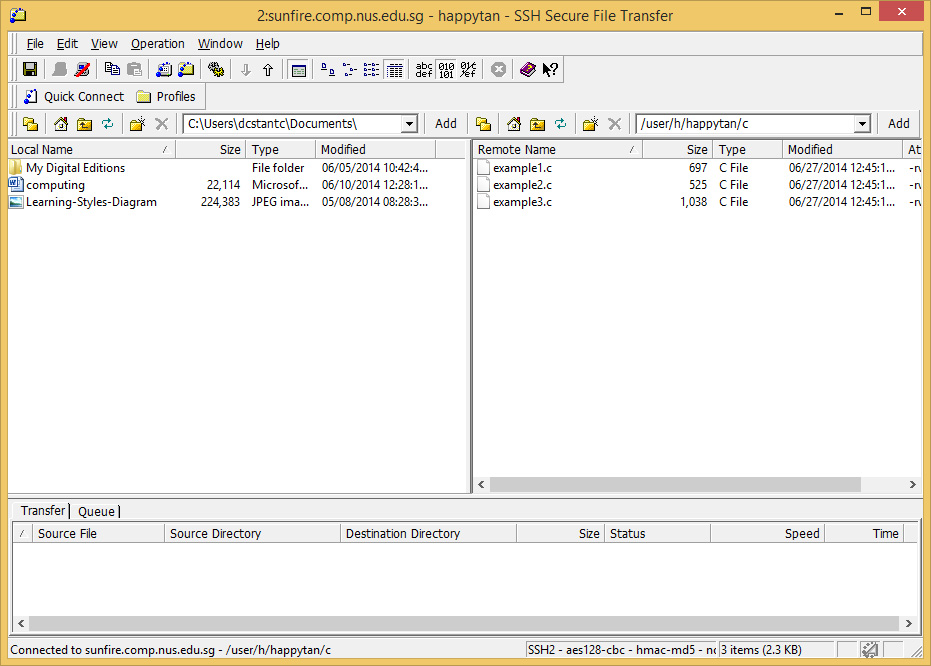
You can navigate around both panels to copy/delete files. To transfer a
file, click on it and drag it to the other panel. You may want to specify
the file type -- ASCII, Binary, or Auto
 -- before you transfer the file. Use ASCII for text files such as your
C source codes, Binary for executable files such as your compiled
programs, and Auto for directories.
-- before you transfer the file. Use ASCII for text files such as your
C source codes, Binary for executable files such as your compiled
programs, and Auto for directories.
6. Submitting Your Programs Using CodeCrunch
You use CodeCrunch for submitting your laboratory programs.
Your source codes are uploaded to the CodeCrunch server and
they are subjected to an automatic assessment. You will see the outcome of
this automatic assessment. However, note that CodeCrunch is used only for a
preliminary assessment; your submitted programs will be assessed by your
discussion leader or grader for a final grade.
Log into the CodeCrunch by going to this URL:
https://codecrunch.comp.nus.edu.sg/
Please refer to the Powerpoint file
Getting Started with CodeCrunch for details.
As mentioned at the beginning of this section, the submitted code goes
through automatic assessment, and so you will get the preliminary grade
immediately, based on correctness of your output.
However, your discussion leader or grader WILL go through your last
submitted program manually to assess it and give the final grade.
These are the files copied into your home directory by the setup
program.
In your home directory:
- .bashrc: Personal per-interactive-shell startup file
(for bash)
(You may also download this file
here.)
- .vimrc: Vim configuration file
(You may also download this file
here.)
Note: Filenames that begin with a dot (.) are 'hidden files' and
are not shown with the "ls" command. Use "ls -a" to
see them.
In your "c" subdirectory:
- example1.c: Computes the distance between two points.
(You may also download this file
here.)
- example2.c: Prints two values as characters and integers.
(You may also download this file
here.)
- example3.c: Prints the system limitations.
(You may also download this file
here.)
Note that these programs are just for you to test out the edit-compile-execute
process. You need not understand all the syntax used in these programs for the
moment, as they will be explained in more details from week 2 onwards.
Connecting to SoC's sunfire UNIX server
If you are using Mac OS or UNIX, issue the command "ssh
<UNIX user-id>@sunfire.comp.nus.edu.sg" (e.g., ssh happytan@sunfire.comp.nus.edu.sg).
(Note: For Mac users, you need to open Terminal to issue the command. Terminal can be found under Applications -> Utilities -> Terminal)
You will be prompted to enter your password.
Once you manage to log in, you can continue with Step 2.4.
Transferring files
If you are using Mac OS, please check out Cyberbuck for file transfer.
If you are using UNIX, issue the command "scp
<source> <destination>" in a similar way as the copy "cp"
command, except that you need to also specify the user-id in sunfire.
For example to copy the file "example1.c" from the local "c"
directory to your home directory in sunfire, enter the command from the local
UNIX prompt.
localuser@localmachine:~[xxx]$ scp ~/c/example1.c happytan@sunfire.comp.nus.edu.sg:~
Note that the source is "~/c/example1.c" and the destination is "happytan@sunfire.comp.nus.edu.sg:~".
To copy a file "example1.c" from the "c" directory in
sunfire to the home directory with a different file name "prog.c"
on your local machine, enter the following command from the local UNIX
prompt.
localuser@localmachine:~[xxx]$ scp happytan@sunfire.comp.nus.edu.sg:~/c/example1.c ~/prog.c
Note that the source is "happytan@sunfire.comp.nus.edu.sg:~/c/example1.c"
and the destination is "~/prog.c".
Last updated: 9 January 2018